

How do I define a policy based upon a subject line trigger word?
It is sometimes useful to apply signatures, based on a 'trigger word' in the subject line of outgoing emails. For example, you might run a sales promotion and need to apply a banner image if the sender enters SALE-DEC13 in the subject line of any outgoing messages. You might also wish to remove the trigger word from the subject line, so that the recipient never sees it (this is particularly useful if you are using codes as trigger words, since these might be confusing for recipients to see).
To achieve this, define a policy where the conditions are set for subject contains specific words or phrases, as shown below:
Step 1: Select 'the subject contains specific words or phrases' option
Having selected this option, click the words or phrases link in the lower pane:

Step 2: Add required words and phrases
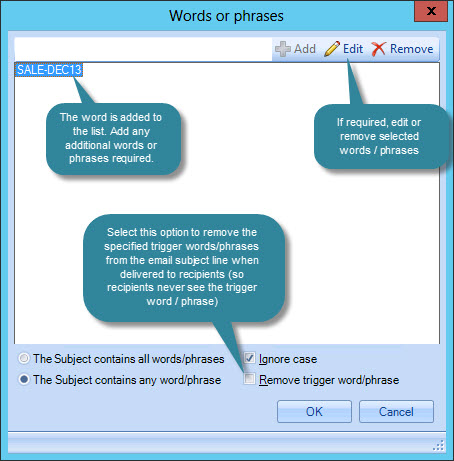
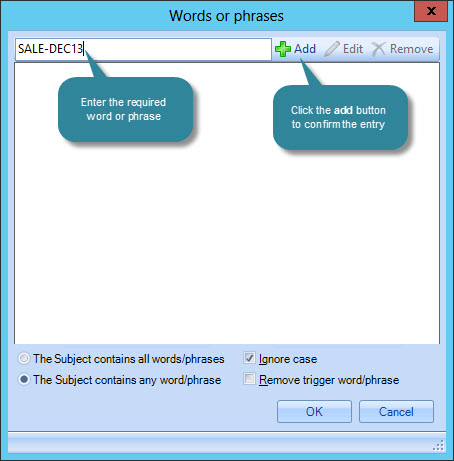
Enter as many words and phrases as required, using the add button to confirm each one. If you specify multiple words in a single line, they are treated as a phrase:
Step 3: Set options for words and phrases
Choose whether all or any words / phrases must be present to trigger the signature. Also choose whether or not to ignore case, and whether or not to remove trigger words / phrases: